Travel guide · 4 min read · July 3, 2026
How to set up an eSIM on iPhone before you fly
Setting up an eSIM on iPhone takes about two minutes over Wi-Fi before your flight: open Settings, tap Cellular, Add eSIM, and scan the QR code from your dizomo dashboard. The profile installs immediately and stays off until you turn the line on abroad. Your home SIM keeps calls and texts; the eSIM carries travel data.
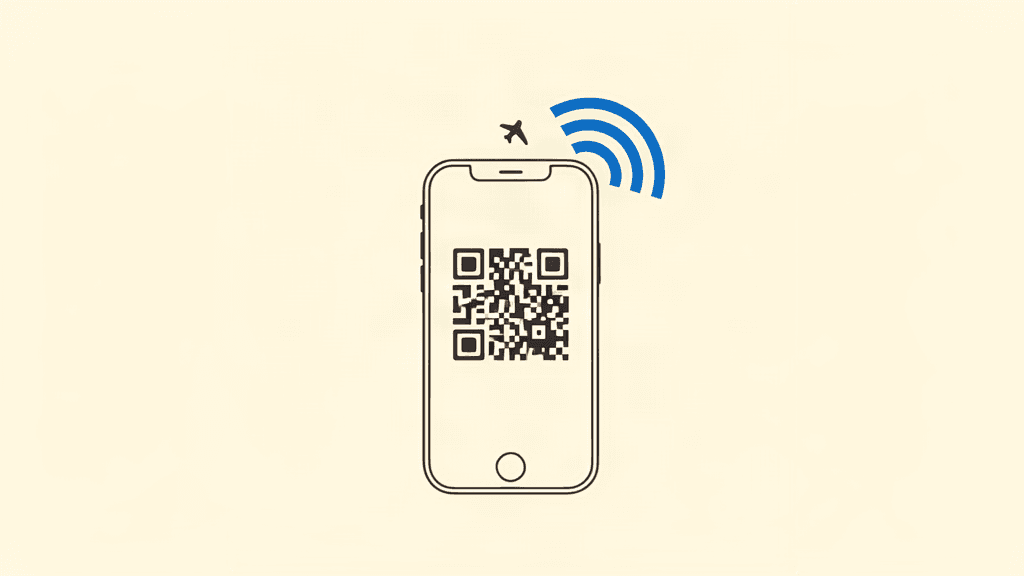
Install your travel eSIM at home over Wi-Fi, not at the airport. Two minutes in Settings, and the line is ready to switch on when you land.
Before you start
You need the QR code from your dizomo dashboard and a Wi-Fi connection. Installing over Wi-Fi at home avoids airport congestion and confirms the profile downloads cleanly.
Check that your iPhone is unlocked and supports eSIM. Most models from the iPhone XS onward do, including the eSIM-only models sold in the US.
Scanning the QR code
Open Settings, tap Cellular, then Add eSIM, and choose Use QR Code. Point the camera at the QR code on your dizomo dashboard and the profile downloads automatically.
If scanning fails, use the manual entry option: dizomo shows the SM-DP+ address and activation code on the same dashboard screen, which you type in or paste.
Labeling and setting defaults
iOS asks you to label the new line. Name it Travel so you can find it later, and when asked, set your home SIM as the line for calls and texts and the travel eSIM as the line for cellular data.
Turn off Allow Cellular Data Switching so your phone never sneaks onto the home line's data while abroad. That setting is the main cause of surprise roaming charges.
On arrival: turn it on
The eSIM stays dormant until you enable it. When you land, open Settings, Cellular, and toggle the travel line on, with data roaming enabled for that line only.
Keep data roaming off on your home SIM. The travel eSIM carries all your data, and WhatsApp, Maps, and email work exactly as they did at home.
Frequently asked questions
Can I install an eSIM before my flight?
Yes, and you should. Install over Wi-Fi at home, and the plan validity starts on first connection abroad, not at install.
What if the QR code does not scan?
Use the manual option in iOS with the SM-DP+ address and activation code shown on your dizomo dashboard.
Do I need to remove my home SIM?
No. Keep it active for calls and texts, and set the travel eSIM as the data line. Turn off data roaming on the home SIM.
Get data before you fly
Compare real prices across 190+ countries and install your eSIM in about two minutes.